2026
How to Use Maket: Design Your Home from Idea to 3D
Learn 3 ways to start a Maket project: generate with AI, draw from scratch, or upload a floor plan. Step by step guide inside.

Caroline Boulard
Head of Growth
5 min read
Maket is an AI-powered design platform enabling homeowners to create residential floor plans quickly. The app allows users to generate new layouts, edit existing plans, and view photorealistic visualizations all within one workspace.
New to AI floor plan generation? Here’s a broader overview of how AI tools work and what to expect.
Here is how it works.
Note: Maket is evolving fast. New features and improvements are released regularly, so some steps or interface details in this guide may change over time. We will keep this page updated as the platform grows.
Step 1: Create your floor plan
Maket offers three ways to start your floor plan: generate from a prompt, draw from scratch, or upload an existing plan:
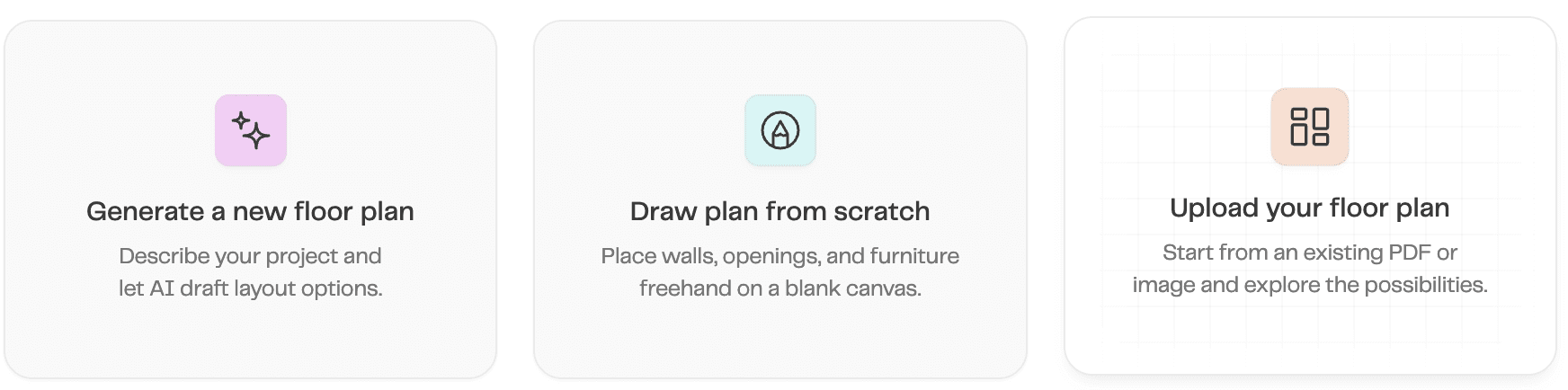
Option 1 — Generate a new floor plan
Best for: when you’re not sure where to start, or you want quick inspiration on layout options
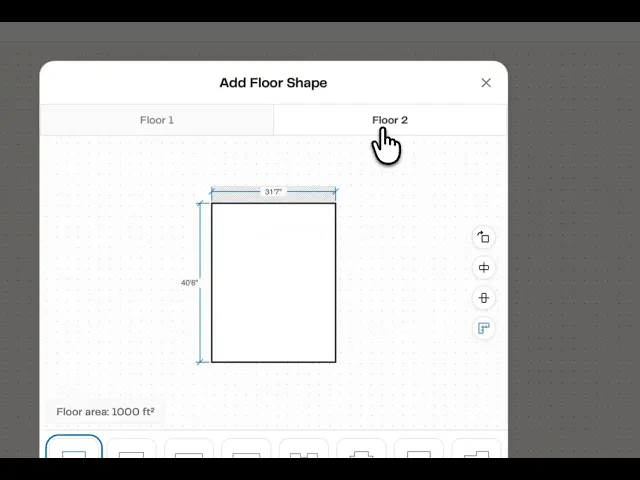
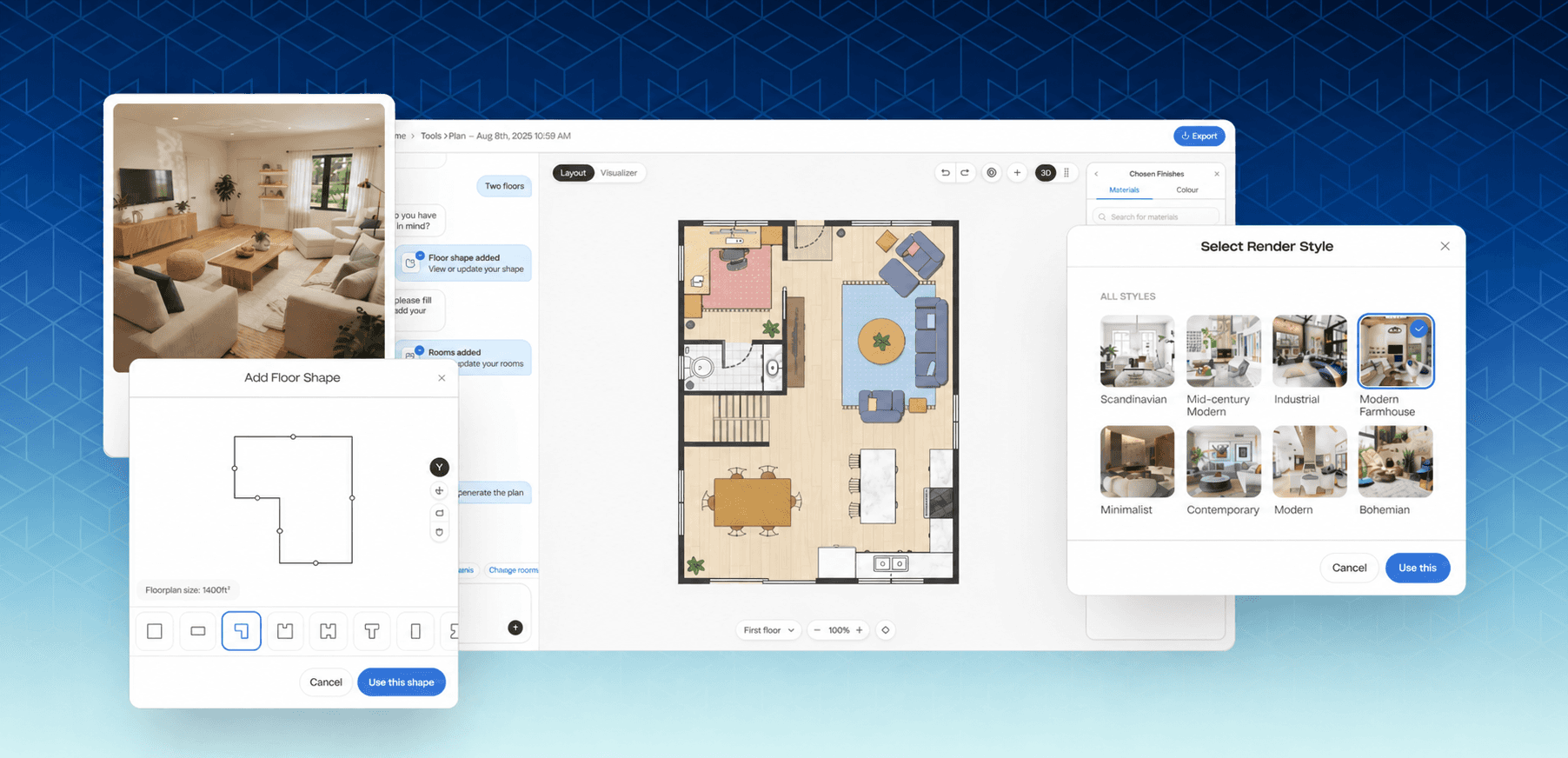
Follow Maket’s guided steps in the chat (floors, area, shape, rooms) and it generates a complete floor plan in minutes, with doors, windows, and furniture included.
💡 Tip: stick to the guided flow rather than pasting a free-form prompt for the best result.
Option 2 — Draw from scratch:
Best for: designing a single room, a studio, an open-concept area, or a small space like a backyard office, with full control over your layout.
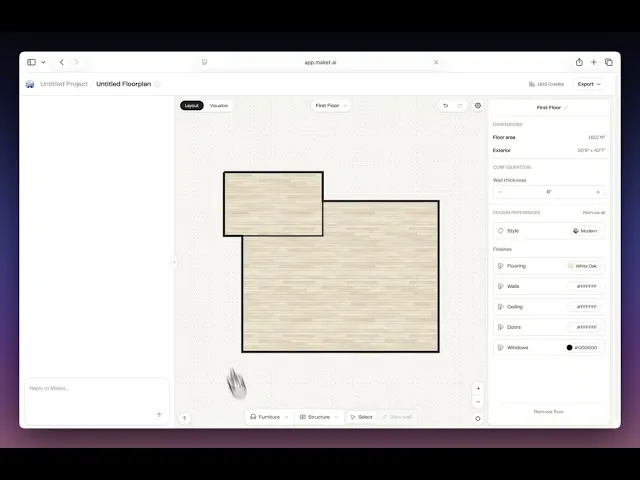
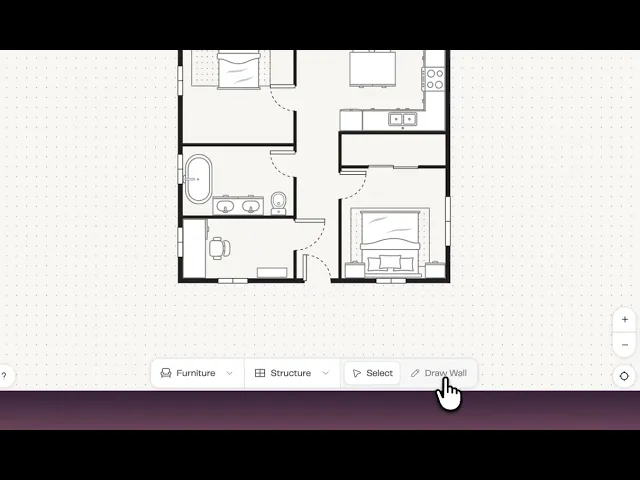
Use the wall tool to sketch your floor plan, then assign room types. Once a room is closed, you can ask Maket to add or complete what you’d like (bedrooms, bathrooms, kitchen, etc.), and it builds the rest of the layout based on your input.
Want to go deeper? Read our full guide on how to draw a floor plan from scratch
Option 3 — Upload an existing plan (Available only on Homeowner Plan) :
Best for: adjusting an existing plan for renovations, additions, or new configurations.
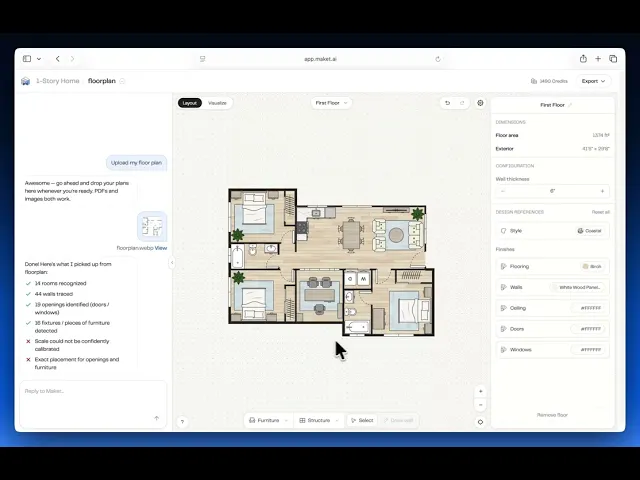
Drop in a PDF, JPG, or PNG of your floor plan and Maket rebuilds it as a fully editable design in a few minutes.
Available on our Homeowner plan (see pricing page for more information)
Curious how it works? Read our guide on how to upload an existing floor plan
Step 2: Edit your layout
Once your plan is generated, you have two ways to edit it.
Agentic editing (chat-based):
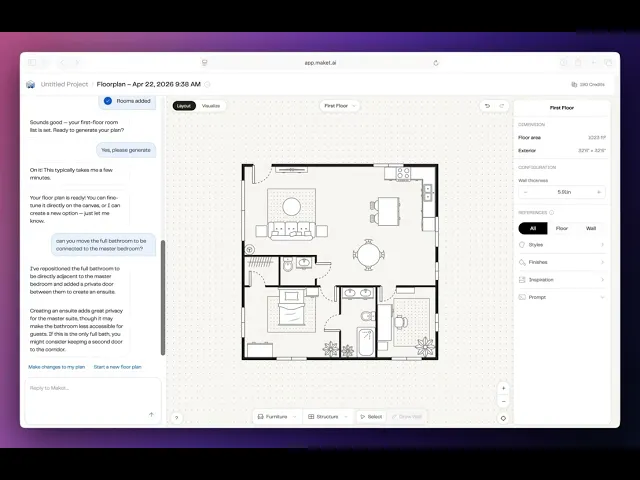
Describe changes in the chat and Maket applies them to your floor plan. Treat it like a conversation with an architect: one change at a time, see the result, ask for the next.
Examples that work well:
“Make the kitchen 20% bigger”
“Add a powder room near the entry”
“Flip the floor plan 180°”
“Swap the bedroom and the office”
💡 Tip: avoid long combined prompts. One change at a time gives faster, more accurate results. If you want to learn more about this feature, you can read the full guide here.
Manual editing on the canvas:
Walls and rooms: Resize by dragging handles, move or delete walls, or draw new walls.
Structure: Add doors, windows, and stairs from the Structure menu.
Furniture: Browse or search the catalog, then drag into rooms. (Furniture is canvas-only, not through chat.)
Switch between chat and canvas anytime. Use the floor selector for multi-story plans. Undo/redo always available. Select any item to see its measurements in the inspection panel.
Step 3: Visualize in 3D and Style Your Space
Switch to Visualize mode to bring your floor plan to life. Customize your space at the level of detail you want, from a broad style reference down to individual elements.
Add style references
From Maket’s library: Choose a style direction (modern, farmhouse, Scandinavian, etc.) or pick specific finishes (materials and colors).
Your own inspiration: Upload an image from Pinterest or a design blog, or describe what you want in a text prompt.
References can be applied to an entire floor or a specific room. NEW: for more granular control, customize individual elements like wall colors, furniture finishes, doors, and flooring.
Rendering
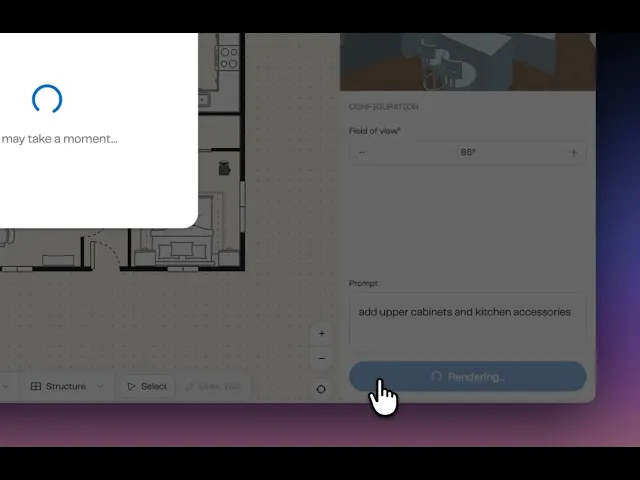
Cameras appear on your floor plan in Visualize mode. Click any camera to adjust its position and angle. The 3D preview updates live as you move. Click “Render scene” to generate a photorealistic image. Add extra direction in the prompt field before rendering (“add curtains”, “change the flooring to oak”, “include kitchen accessories”).
Step 4: Export and Share
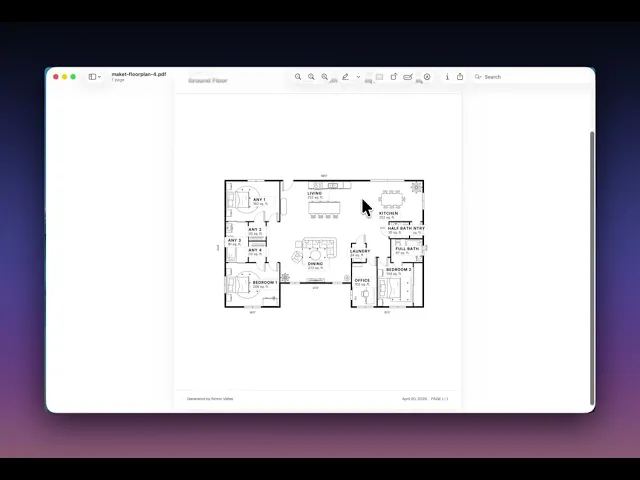
Export your floor plans as DXF files for architects and CAD workflows, or as PDF for sharing with clients, contractors, and family.
Pricing
Maket is free to start with 50 credits—no credit card required. The Homeowner plan costs $20 USD per month and includes 300 monthly credits, multi-floor generation, AI floor plan editing, one AI-assisted Floor Plan Upload, and PDF, DXF, and render exports.
Generating a floor plan uses 20 credits, while generating a render uses 10 credits. Credits included with paid plans refresh monthly. Visit the pricing page for full details.
Need help? Reach out through the in-app chat or visit our FAQ and Help Center.
Frequently asked questions
Is Maket free to try?
Yes. Maket offers a Free plan with 50 one-time credits, and no credit card is required. It includes single-floor plan generation, floor plan editing, and render generation. Features such as multi-floor generation, Floor Plan Upload, and downloadable exports require a paid plan. See the pricing page for details.
What’s included in the Free and Homeowner plans?
The Free plan includes 50 one-time credits for exploring single-floor plan generation, editing, and rendering.
The Homeowner plan costs $20 USD per month and includes 300 monthly credits, multi-floor generation, AI floor plan editing, one AI-assisted Floor Plan Upload, and PDF, DXF, and render exports. See the pricing page for a complete comparison.
What are the three ways to start a project in Maket?
You can:
Generate a floor plan from a text prompt using the guided chat.
Draw a plan from scratch using the wall tool.
Upload an existing floor plan as a PDF, JPG, or PNG and let Maket convert it into an editable design.
Floor Plan Upload is available with the Homeowner and Pro plans.
Can I upload my own floor plan to Maket?
Yes. The Homeowner plan includes one AI-assisted Floor Plan Upload, which provides an editable starting point that you can review and refine. Upload a JPG, PNG, or PDF, and Maket will identify the walls, doors, and windows. You can then move walls, add or remove rooms, or ask Maket to update the layout using a text prompt.
For professional projects requiring greater accuracy, the Pro plan includes up to five human-validated plan uploads per month. See the pricing page for details.
How accurate is the Floor Plan Upload feature?
Accuracy depends on the quality and complexity of the source file. The AI-assisted upload included with the Homeowner plan provides a starting point that you can review and adjust manually.
For professional projects, Pro plan uploads are validated by the Maket team to accurately reproduce the rooms, dimensions, doors, and windows shown in the original plan.
How do I draw a floor plan from scratch in Maket?
Open a new project and select Draw from Scratch. Use the wall tool to sketch your floor plan, then assign room types. Once you have created an enclosed room, you can ask Maket to add or complete spaces such as bedrooms, bathrooms, or a kitchen based on your input.
Can I edit my floor plan using a text prompt?
Yes. Maket supports AI floor plan editing through the chat. Describe the change you want—for example, “Make the kitchen 20% bigger” or “Add a powder room near the entry”—and Maket will apply it directly to the plan. For the best results, request one change at a time.
AI floor plan editing is included with the Homeowner and Pro plans.
Can I export my floor plan to PDF or DXF?
Yes. Paid plans let you export floor plans as PDF or DXF files to share with an architect, builder, or contractor. Downloadable exports are not included with the Free plan. See the pricing page for details.